
Export a Telegram chat: JSON or HTML
Telegram does not export from the phone the way WhatsApp does. The file is built in Telegram Desktop, on a computer.
Pick HTML if you only want to read. Pick JSON if you want a book and a PDF. Here is what the file holds, and what it leaves out.
The phone is for reading and replying. The full history, with dates and files, is prepared on a computer, one chat at a time.
Export from Telegram Desktop
Install Telegram on the computer and sign in with the same account as the phone. Open the chat. Conversation menu (three dots), then Export chat history.
The same account
The phone number, not another one. A different account produces an empty folder.
One chat
Telegram does not send the whole list in one go. You pick the thread.
The original folder
Store it as it arrived. The working copy is a second folder.
Pick a date range if the thread is huge. Include photos if you want them in a book. The folder holds the text and, if you asked for them, the media files.
Count one chat per export. A busy group gets heavy once photos are included. Start with text if you only want to check that the thread is there, then run it again with media.
On the computer
JSON or HTML
HTML opens in a browser. Easy to read, awkward if you want one period or a real layout.
HTML
A page in the browser. Easy to read, awkward if you want a single year.
JSON
Usually result.json. That is the file you upload to rebuild dates and bubbles.
Photos
They come along if the box was checked. Otherwise you get text only, and that is expected.
JSON usually gives a file named result.json. Dates, senders and attachments are structured. That is the file you add for a PDF or a printed book. If you also wrote on WhatsApp, start here: export a WhatsApp chat.
Open the HTML if you want to check names and dates right away. Use the JSON for a PDF or a book: the authors are already structured, so you are not retyping bubbles.
Both can sit in the same folder. HTML is for rereading. JSON is the material for the printed book.
What the export leaves out
Secret messages that already expired are not included. Chats you did not select are not included. A call may be mentioned without the recording.
To put Telegram next to Instagram or WhatsApp in one book, follow combine several chats. Before you send the folder to a random site, read what a converter does with the file.
A secret message that already vanished does not come back. A voice note may be listed without the sound. If the chat was cleared before the export, the folder tells that emptiness, not the story.
Before you send the folder
Keep the original with you. Read what an upload actually does, then work on a copy.
What you open next
After the export, open the folder before you move it. If you see result.json, the text is structured. If you see HTML pages, the chat opens in a browser.
Check
Ten messages, the right names, dates that follow each other.
Name it
Today's date in the folder name, not "final export 3".
Copy
The original is not a draft. You trim a period on the copy.
To place Telegram next to another app, follow combining chats into one book. To see where the file goes, read what an upload involves.
From the bubble to the book
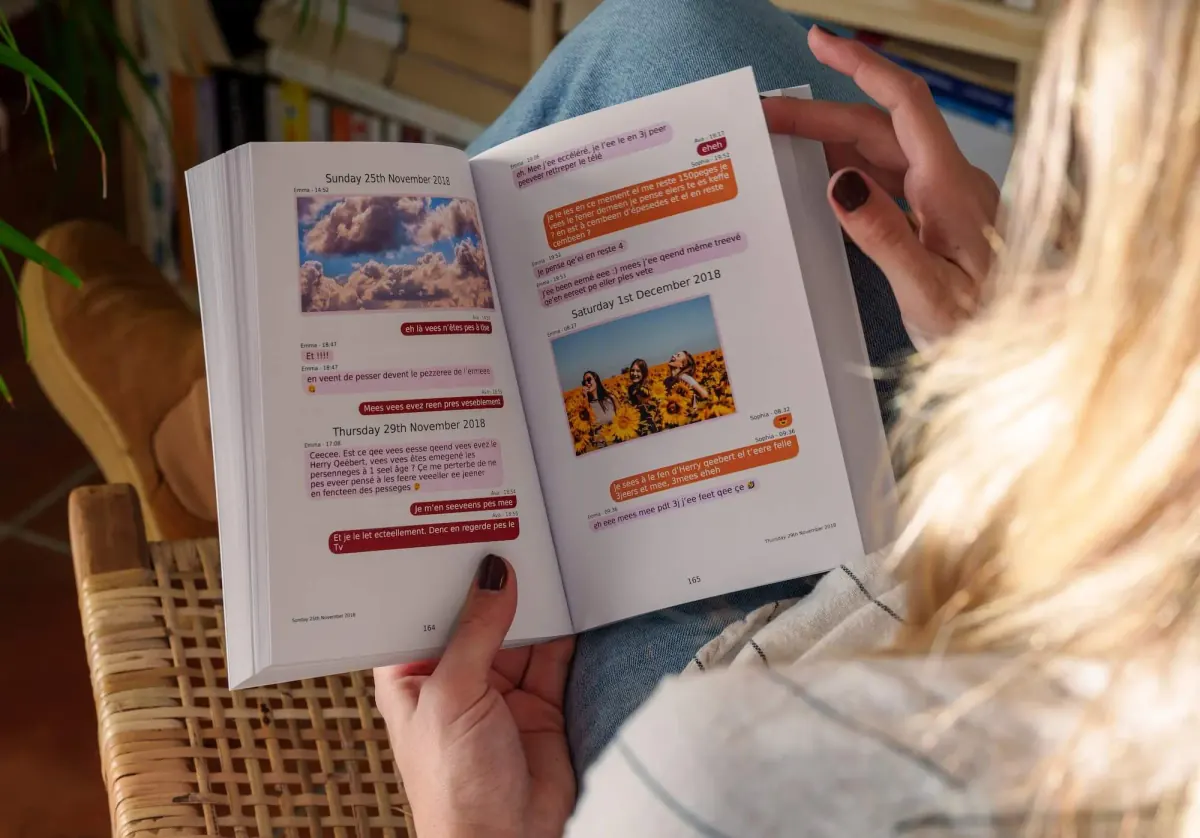
Once the folder is in, the chat opens in the app. That is already the book, before it is printed.
Search
A word or a first name. The bubble comes back.
The time
The date and time from the app, on the message.
The book
The preview first. The printed object next, with the PDF.
In the app, a word or a first name is enough to find the bubble. Every message keeps the date and time from the chat. You choose where the book starts and where it stops, you leave out what does not belong, then you flip through the preview. Photos stay on the page. A voice note or a video opens from the QR code. The PDF comes with the book.
Common questions
Can I export Telegram from an iPhone?
Not a full history. The real export is in Telegram Desktop, signed into the same account.
JSON or HTML?
HTML to read in a browser. JSON (result.json) to rebuild bubbles, dates and a book.
Are secret chats included?
No. Messages that already disappeared are not in the export.
Is the export a single file?
Often no. You get a folder, sometimes a zip, with result.json or HTML pages, and a media folder if you asked for photos. Keep the whole thing.
Don't lose your digital memories
Closed accounts, new phones. Your conversations deserve better than the digital trash.
MonLivreSMS imports your SMS or WhatsApp exports and lays them out as a book or PDF. Free preview before printing.
-
01
Gather your memories
WhatsApp, SMS, Messenger… your chats come together. Private, yours only.
-
02
Make it yours
Colors, dates, words: it's your story, your way.
-
03
It comes to you
Your book ships anywhere in the world. And you already have it as a PDF.
From export to a book you can hold
Save before you delete
Your messages and photos kept in a lasting format.
Create my book